
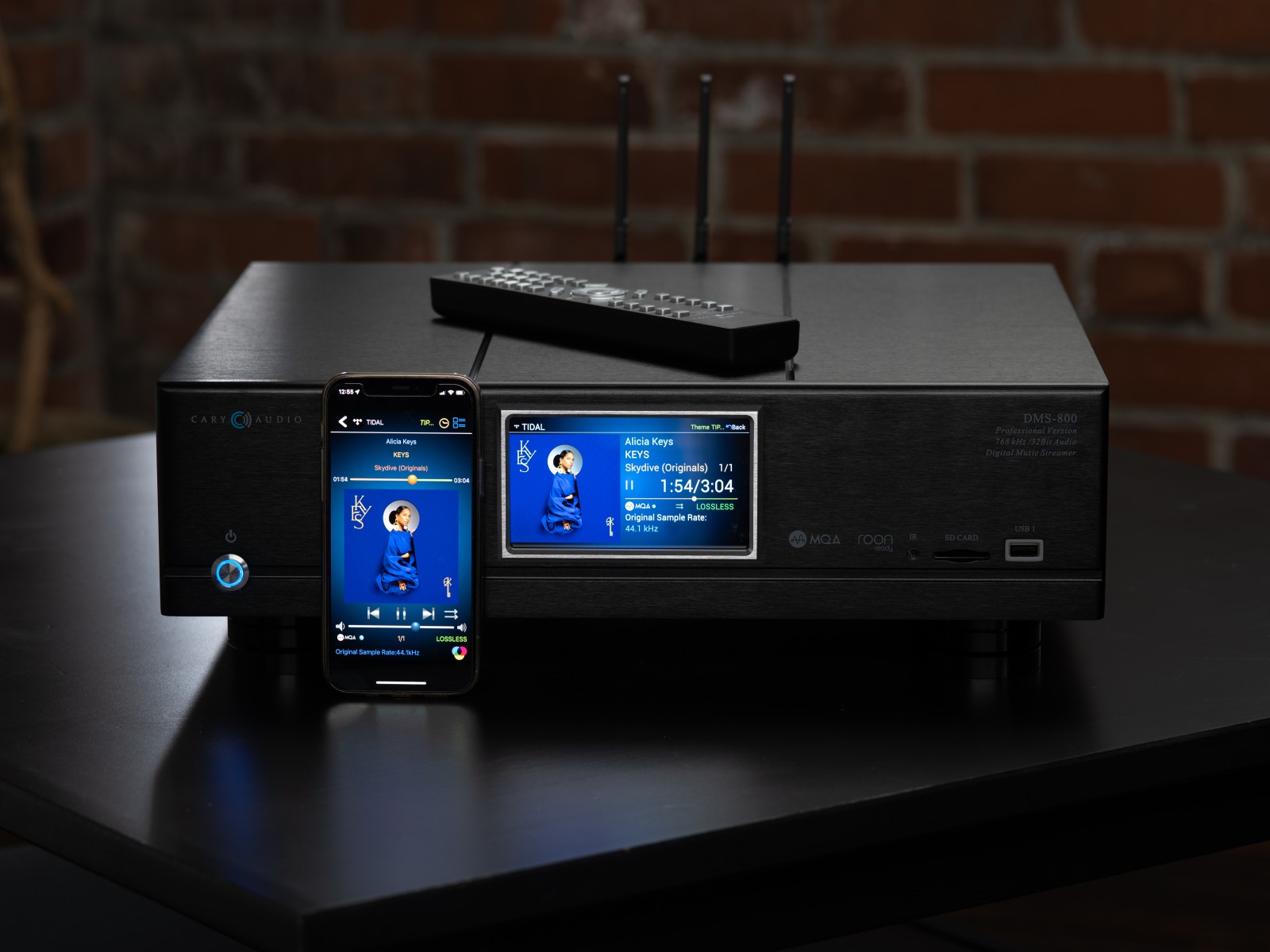
TIDAL Connect, Qobuz Connect, Spotify Connect with Cary Audio DMS streaming players or all-in-ones (AiOS, DMS-300A)
It’s surprising how many Spotify Connect, TIDAL Connect, and Qobuz Connect users aren’t actually streaming in the highest sound quality. Why? Because many people accidentally connect to their DMS or AiOS devices via Bluetooth or AirPlay, both of which downgrade audio quality.
To get true high-resolution, lossless audio, your device must connect directly over your network using each service’s Connect feature.
HOW TO KNOW IF YOU’RE CONNECTED INCORRECTLY
If the Now Playing screen on your DMS shows “Bluetooth” or “AirPlay” in the upper left corner, you’re not using the correct connection. You should see a Spotify, TIDAL, or Qobuz icon with the word “Connect” next to it.
HOW TO CONNECT CORRECTLY (NO CARY STREAMER 2.0 APP REQUIRED)
You do not need to open Spotify, TIDAL, or Qobuz through the Cary Streamer 2.0 app. Instead, do this:
- Turn on your DMS/AiOS. No other action needed.
- Open the Spotify, TIDAL, or Qobuz app on your phone/tablet/desktop.
- Choose your music and start playback.
- In the Play Bar or Now Playing screen, tap the Device Icon (If you’re unsure what that looks like, use the links below).
- Important: Do NOT choose Bluetooth or AirPlay.
- Scroll through the device list. As long as your phone/computer is on the same network as your DMS/AiOS, you will see your DMS or AiOS appear as a Connect device. If you don’t see it immediately, go back to the Now Playing screen and tap the Device Icon again, and the list of available devices should refresh.
Helpful links:


